
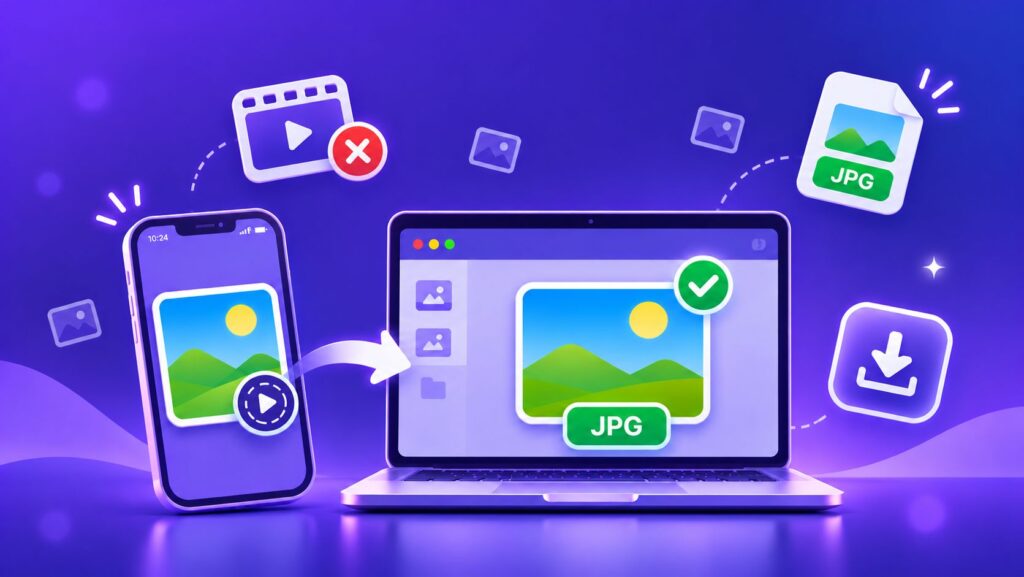
Took a great shot on your phone, sent it to your laptop or a friend, and the file is weirdly heavy, plays a little clip, or just won’t upload cleanly? That’s a Motion Photo. It’s a normal picture with a short video tucked inside, and that extra baggage is what causes the trouble. Here’s how to turn it into a plain, lightweight JPG that opens and shares everywhere.
What a Motion Photo actually is
Most big phone brands have this feature, just under different names: Samsung calls it Motion Photo, Google Pixel calls it Top Shot, and Xiaomi, OnePlus, Oppo, Vivo and others use similar labels. Whatever it is called, the file works the same way, and so does the fix below.
When the feature is on, your phone doesn’t just save a still picture. It saves a regular JPG with a few seconds of video baked into the same file. That’s why the photo “comes alive” in your gallery. It looks cool on your phone, but the moment you move it elsewhere, that hidden video becomes dead weight: bigger file size, odd playback, and uploads that some apps and websites choke on. Converting it to a plain JPG keeps the picture you want and drops everything you don’t. The same logic is why some photos download as WebP and need converting before they open on every device.
Convert a Motion Photo to JPG (fastest way)
The quickest fix is to re-save the photo as a clean JPG right in your browser. You don’t need any app, and your photos never get uploaded to a server.
- Copy the Motion Photos from your phone to your computer (cable, Google Photos, or any chat app).
- Open the image converter.
- Drag your photos in and choose JPG as the output.
- Download. You now have a clean, standard JPG.
Everything runs inside your browser, so there’s no sign-up, no watermark, and nothing leaves your device. You can drop in a whole batch at once, which helps when you’ve copied a full folder off your phone. If some of those shots came from an iPhone instead, the same tool also handles iPhone photos and other formats.
Turn off Motion Photo so it doesn’t happen again
If you’d rather stop capturing them in the first place, switch the feature off in your camera:
- Samsung Galaxy: open Camera, tap the Motion Photo icon (the square with a play symbol) at the top, and set it to Off.
- Google Pixel: open Camera, go to Settings, and turn Top Shot Off.
- Motorola: open Camera and switch off the Motion or Live toggle.
- Xiaomi, OnePlus, Oppo, Vivo and others: look for a Motion or Live photo toggle in the camera app, usually near the top of the screen, and switch it off. The name varies by brand, but the setting works the same way.
After this, your camera saves normal still photos, and you won’t need to convert anything later.
Make the file smaller or the right size too
Once you have a plain JPG, you can finish the job in the same place. If the photo is too heavy for a form, WhatsApp, or email, run it through the image compressor to hit an exact KB target. Government forms often demand a specific weight, and you can match that exactly by learning how to compress an image to a target KB. Need different dimensions instead? Use the image resizer to set an exact width and height, both in your browser without wrecking quality.
Which format should you keep it as
JPG is the safest all-rounder because it opens everywhere, which is why it’s the right pick for a cleaned-up Motion Photo. If you’re putting the image on a website and want it lighter, you can convert between many image formats, or read why heavy images can slow a website down. For everyday sharing though, a plain JPG is all you need.
Frequently Asked Questions
Why is my Motion Photo so large?
Because it stores a short video alongside the picture in the same file. Converting it to a plain JPG removes that video and leaves just the still image, which is much smaller.
Will I lose photo quality when I convert to JPG?
No noticeable loss. You keep the full still image. The only thing that goes is the hidden motion clip, which you don’t need for sharing, printing, or uploading.
Do I need to install an app to convert?
No. You can convert a Motion Photo to JPG right in your browser, with no install, no sign-up, and no uploading your photos anywhere.
Can I convert many Motion Photos at once?
Yes. You can drop in a whole batch and download them together, which is the easiest way to clean up a full folder.
Does turning off Motion Photo delete my old ones?
No. Turning it off only changes future shots. Your existing Motion Photos stay as they are until you convert them.
What is Motion Photo called on my phone?
It depends on the brand. Samsung calls it Motion Photo, Pixel calls it Top Shot, and Xiaomi, OnePlus, Oppo and Vivo use similar Motion or Live labels. They all store a short video inside the picture, so the same fix works for all of them.