
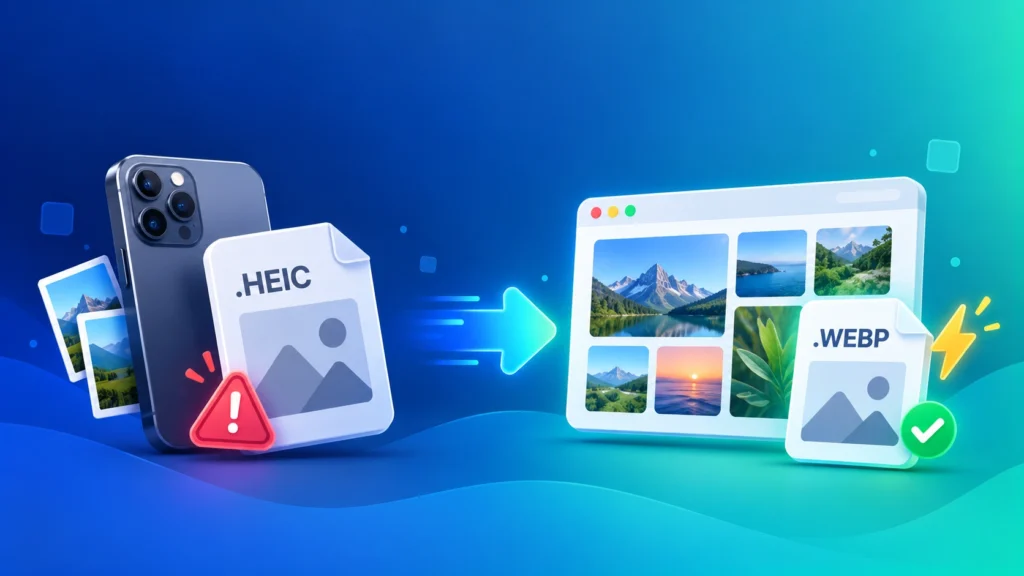
Your iPhone saves photos as HEIC great for saving storage, but a headache when you want to use those photos on a website, blog, or online store. Converting HEIC to WEBP gives you small, fast-loading images that work in every browser. Here’s how to convert HEIC to WEBP free, in seconds, without uploading your photos anywhere.
What Is a HEIC File?
HEIC (High Efficiency Image Container) is the default photo format on iPhones and iPads. Apple uses it because a HEIC photo is roughly half the size of a JPG at similar quality, which saves space on your phone.
The problem is that HEIC works smoothly inside the Apple world, but much less so outside it. Most browsers, many Windows apps, and many website builders can’t display HEIC photos properly.
Why Convert HEIC to WEBP Instead of JPG?
If you only need to share or print a photo, JPG is fine. But if your iPhone photos are going on a website, blog, or online store, WEBP is the smarter choice:
- Works in every modern browser — Chrome, Edge, Firefox, and Safari all display WEBP, unlike HEIC
- Much smaller than JPG — WEBP files are typically 25-35% smaller than JPG at similar quality
- Faster page loading — lighter images improve Core Web Vitals and help your Google ranking
- Keeps the small file size you started with — converting HEIC to JPG often creates a much bigger file, while WEBP stays close to HEIC’s efficiency
- Supports transparency — useful for product cut-outs and graphics
HEIC vs WEBP vs JPG vs PNG: Which Format Should You Use?
| Format | File Size | Opens in Browsers? | Best For |
|---|---|---|---|
| HEIC | Small | Rarely — limited support | Storing photos on iPhone |
| WEBP | Small | Yes — all modern browsers | Websites, blogs, online stores |
| JPG / JPEG | Medium | Yes | Sharing, WhatsApp, forms, printing |
| PNG | Large | Yes | Screenshots, logos, editing |
The simple rule: HEIC for your phone, WEBP for the web, JPG for everything else.
How to Convert HEIC to WEBP Online Free (Step by Step)
- Open our free HEIC to WEBP Converter.
- Drag and drop your HEIC photos — or select a whole batch at once.
- Click convert.
- Download your WEBP images, ready to upload.
Everything runs locally in your browser, so your personal photos are never uploaded to a server. No sign-up, no watermark, and no file limit.
How to Convert HEIC to WEBP on Windows
Windows often can’t open HEIC files without extra extensions, but you don’t need to install anything to convert them. Copy your iPhone photos to your PC, open the HEIC to WEBP converter in Chrome or Edge, and drop the files in. Your WEBP images download straight to your computer.
How to Convert HEIC to WEBP on iPhone
You can convert directly on your phone, without an app:
- Open the HEIC to WEBP converter in Safari or Chrome on your iPhone.
- Tap to select photos from your Photos library or Files app.
- Convert and save the WEBP files to your phone.
Batch Convert HEIC to WEBP (Multiple Photos at Once)
Uploading a whole product catalogue or photo gallery? The converter supports bulk HEIC to WEBP conversion, so you can convert dozens of iPhone photos in one go instead of one at a time.
Have a mix of formats from different devices? Our all-in-one Image Converter handles HEIC, JPG, PNG, AVIF and more in the same batch. Already have JPG or PNG files? Use the JPG to WEBP or PNG to WEBP converters.
Does Converting HEIC to WEBP Reduce Quality?
Only very slightly. Both HEIC and WEBP are efficient formats, so converting at a quality setting of 80-90% keeps your photos looking sharp while staying small.
For website use, two extra steps make a big difference:
- Resize first — iPhone photos are often 4000+ pixels wide, far bigger than any website needs. Use our Image Resizer to bring them down to 1200-2000 pixels wide
- Compress if needed — squeeze out extra kilobytes with our Image Compressor
HEIC to WEBP for WordPress, Shopify and Online Stores
Many website platforms either reject HEIC uploads or convert them into large JPG files that slow your pages down. Converting HEIC to WEBP before uploading gives you full control: small files, consistent quality, and images that display correctly for every visitor.
This is especially useful for small businesses that shoot product photos on an iPhone — convert the whole batch to WEBP, upload, and your store loads faster straight away.
Tip: Stop Your iPhone Saving Photos as HEIC
If you’d rather your iPhone saved JPG files from the start, go to Settings → Camera → Formats and choose Most Compatible. New photos will be saved as JPG instead of HEIC. Keep in mind that these files take up more storage space on your phone.
Frequently Asked Questions
Can I convert HEIC to WEBP without losing quality?
Yes, for practical purposes. At a quality setting of 80-90%, the difference between the original HEIC and the WEBP is very hard to see, while the file stays small.
Is HEIC to WEBP better than HEIC to JPG?
For websites, yes — WEBP files are smaller than JPG and load faster. For WhatsApp, forms, or printing, JPG is the safer choice because it’s accepted everywhere.
Can I convert multiple HEIC files to WEBP at once?
Yes. Our HEIC to WEBP Converter supports batch conversion, so you can convert many photos together.
Is it safe to convert my iPhone photos online?
With imgformats, yes. The conversion happens entirely in your browser, and your photos never leave your device.
Can I convert WEBP back to JPG later?
Yes. If you ever need a JPG version, use our WEBP to JPG Converter.
Does WEBP keep the photo’s location and camera data?
Usually not. Metadata such as location (GPS) is typically removed during conversion, which is often a privacy benefit when publishing photos online.