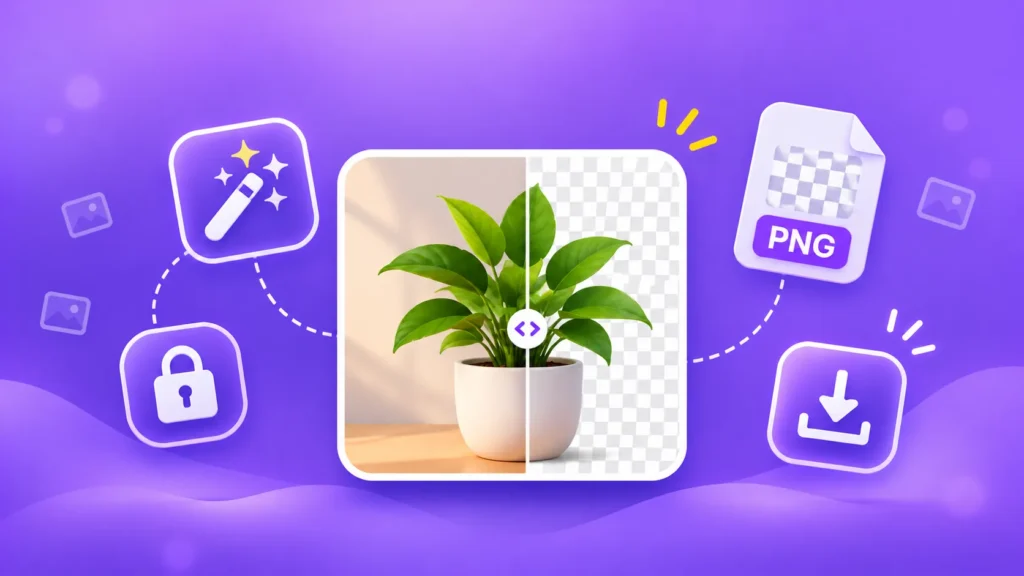
Need to pull the background out of a photo — for a product shot, a profile picture, a logo, or just a clean cutout? You don’t need Photoshop, you don’t need to pay, and you really shouldn’t have to upload your private photos to someone’s server. Here’s how to remove the background from any image for free, right in your browser, with nothing ever leaving your device.
The catch with most background removers
Most popular background removers work the same way: you upload your photo, their server runs the AI, and they send back the cutout. That’s fine for a meme, but it means your image, which could be a client’s product, a personal photo, or an ID, sits on a company’s server governed by their privacy policy, not yours. It’s the same reason people worry about sending photos without losing quality through apps that re-process everything. On top of that, the free tiers usually cap your downloads, drop the resolution, add a watermark, or push you to sign up.
There’s a better way now. Modern browsers can run the same kind of AI model on your own device, so the photo never gets uploaded at all.
Remove a background in your browser (free, no upload)
With a browser-based tool, the AI runs locally on your machine. Here’s the whole process:
- Open the background remover.
- Drag your photo in, or paste it with Ctrl+V. JPG, PNG and WEBP all work.
- Wait a moment while the AI removes the background on your device. The first photo takes a little longer as the AI starts up; after that it’s quick.
- Download your cutout as a transparent PNG.
No sign-up, no watermark, and the full-quality file is yours. Because everything happens in your browser, the photo never leaves your computer.
Don’t just delete it — replace the background too
A transparent cutout is only the start. Once the background is gone, you can drop in a new one without touching another app:
- Solid colour or gradient: set a clean white backdrop for a catalogue, or a bold colour for social posts.
- Your own photo: place the subject against any background image you upload.
- Blur: keep the original background but blur it for a soft, professional look.
- Drop shadow: add a soft shadow under the subject, which is great for product shots.
You can also fix the edges by brushing to restore or erase parts, add text on top, and resize to a preset like square, portrait or a product shot, all before you download.
Why a browser-based remover is better
| What matters | Browser-based (local) | Upload-based |
|---|---|---|
| Your photo | Never leaves your device | Sent to their server |
| Cost | Free, unlimited | Often capped or paid |
| Watermark | None | Common on free tiers |
| Sign-up | Not needed | Often required |
The one trade-off is a short one-time AI start-up the first time you use it, since your device does the work instead of a server. After that, cutouts are fast.
Getting the cleanest cutout
A few things help the AI do its best work. Use a photo where the subject stands out from the background, with decent lighting and focus. Higher-resolution images give cleaner edges than tiny, blurry ones. For hair or fur, zoom in afterwards and use the restore and erase brushes to tidy the fine edges. For the smoothest experience, a laptop or desktop on the latest Chrome or Edge is fastest, though it works on phones too.
Once your cutout looks right, you can keep it as a transparent PNG, or convert it to another format later with the image converter if you need a JPG with a solid background. If the file is heavy, the image compressor and image resizer get it to the right size without wrecking quality — handy when you’re prepping a profile picture at the right size for Instagram, LinkedIn or a passport photo. A clean PNG cutout also keeps edges sharp, which matters since heavy, uncompressed images can slow a website down. If you’re building for the web, you might also want to convert your PNGs to WebP in bulk for lighter files.
Frequently Asked Questions
Is this background remover really free?
Yes. It’s free with no sign-up, no watermark, and no download limits. You get the full-quality cutout.
Does my photo get uploaded anywhere?
No. The AI runs directly in your browser, so your photo never leaves your device and isn’t sent to any server.
What format is the cutout saved in?
As a transparent PNG by default, which keeps the see-through background. You can also export as WEBP, or add a solid colour behind the subject if you need a filled background.
Why does the first image take longer?
The first time, your device loads and starts the AI, which takes a few seconds to a minute depending on the device. Every image after that is much faster.
Can I change the background colour after removing it?
Yes. After the background is removed you can add a solid colour, a gradient, your own photo, or a blur, all before downloading.