Why This Matters
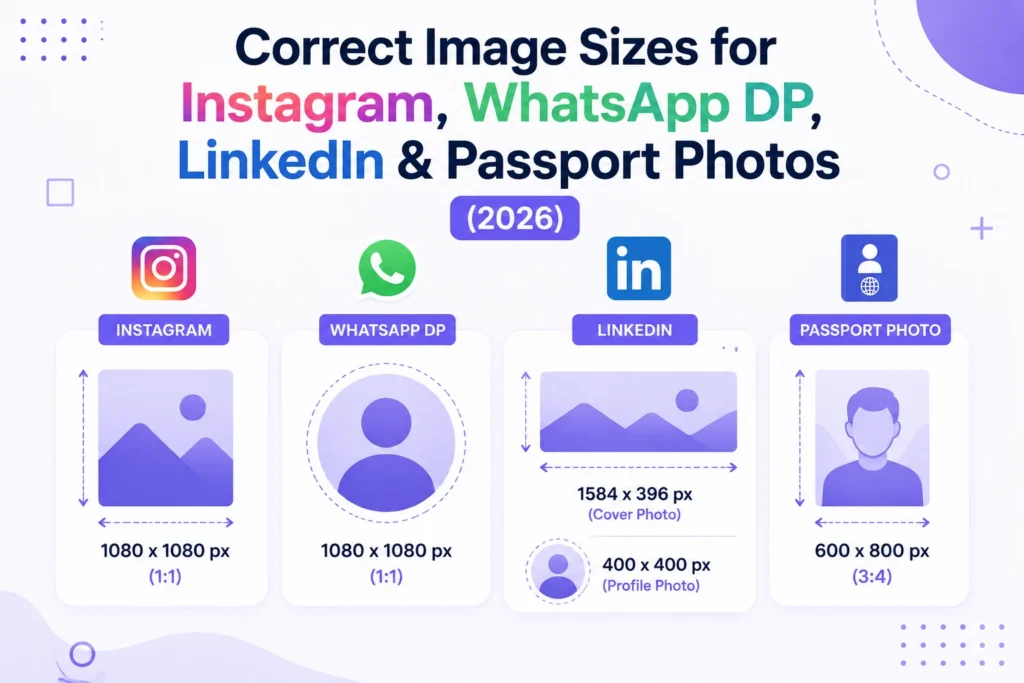
Most platforms don’t just “shrink” your photo — if it’s the wrong dimensions or aspect ratio, they crop it automatically, often cutting off faces or important details. Getting the size right before you upload gives you full control over how your photo actually looks.
Common Size Requirements
| Platform / Use | Recommended Size | Aspect Ratio |
|---|---|---|
| Instagram Post | 1080 × 1080 px | 1:1 |
| Instagram Story | 1080 × 1920 px | 9:16 |
| WhatsApp DP | 500 × 500 px | 1:1 |
| LinkedIn Profile Photo | 400 × 400 px | 1:1 |
| Facebook Cover Photo | 820 × 312 px | ~2.6:1 |
| Passport Photo (India) | 600 × 600 px (2×2 inch) | 1:1 |
| Standard Job Application Photo | 200 × 230 px | ~1:1.15 |
How to Resize Without Distorting Your Photo
The biggest mistake people make is manually stretching a photo to fit a size — this warps faces and looks unprofessional. The right way is to resize while keeping the aspect ratio locked, then crop if needed.
Our Image Resizer handles this automatically — enter the exact dimensions you need (or pick a preset like the ones above), lock the aspect ratio, and download a properly resized photo in seconds, all done privately in your browser.
Frequently Asked Questions
Will resizing reduce my photo’s quality?
Reducing size (making it smaller) has minimal quality impact. Enlarging a small photo significantly can reduce sharpness — it’s always best to start with a high-resolution original.
Can I resize multiple photos to the same dimensions at once?
Yes, our Image Resizer supports batch resizing, so you can prepare a whole folder of photos to one exact size in one go.