
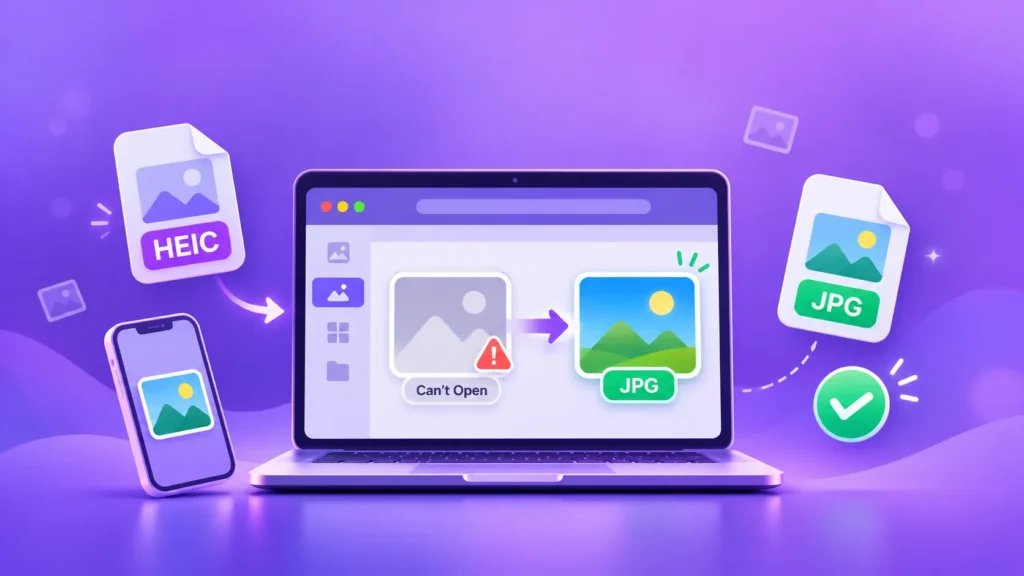
Got a shiny new iPhone 17, took some stunning photos, moved them to your laptop… and now they just won’t open? File Explorer shows a blank thumbnail, Photoshop refuses them, and Gmail won’t even attach them. Don’t worry — your photos aren’t broken and you didn’t do anything wrong. It’s only a format issue, and it takes about two minutes to fix.
The real reason: iPhone 17 saves photos as HEIC
Since 2017 (iOS 11), iPhones have saved photos in the HEIC format, a type of HEIF. It gives the same quality as JPG at roughly half the size, which is why Apple loves it. The problem is that the rest of the world isn’t as friendly with it: Windows, Android and many websites won’t open a .heic file directly.
iPhone 17 adds one more wrinkle. Pro models have an option called HEIF Max that packs a full 48-megapixel photo into a small .heic file (around 5 MB) instead of the heavy ~75 MB of ProRAW. Great detail, small size — but the extension is still .heic. So you hit the same old “won’t open” problem on a PC, just with a 48MP file now.
Three ways to make an iPhone 17 photo open
You have three clean routes. If you want something quick and safe, the first is the best.
1. Convert HEIC to JPG (fastest, no upload)
The simplest fix: turn the .heic file into a JPG, since JPG opens everywhere. You don’t need any software, and you don’t need to upload your private photos to a server. Just open the free image converter from imgformats, drag in your HEIC photos, pick JPG as the output, and download. Everything happens right inside your browser — no sign-up, no watermark, no upload. You can do several photos at once too.
If you’re optimising for websites rather than general sharing, you can choose WebP instead of JPG — see the guide on how to convert iPhone photos to WebP, which is even lighter.
2. Set your iPhone to shoot JPG from now on
If you’d rather not convert every time, set the iPhone to save JPG directly:
- Open Settings
- Tap Camera
- Tap Formats
- Choose Most Compatible (instead of High Efficiency)
After this, the camera saves straight to JPG, which opens everywhere. The files are a bit larger, but compatibility is guaranteed. For the full step-by-step, see how to turn off HEIC on iPhone and shoot JPG.
Note: the HEIF Max (48MP) option only works while Formats is set to High Efficiency. The moment you pick Most Compatible, the iPhone switches to JPG.
3. Install the HEIC codec on Windows
If you want to open existing .heic files on Windows without converting them, install HEIF Image Extensions from the Microsoft Store. After that, the Windows Photos app will open HEIC. Keep in mind this only helps apps like Photos — many other image viewers, email clients and business tools still won’t read HEIC, so the true “works everywhere” fix is still converting to JPG.
Which method to pick, and when
| Situation | Best method |
|---|---|
| A few photos to send or upload right now | Convert to JPG |
| Never want this problem again | Set iPhone to Most Compatible |
| Only need to view them on your PC | Install the HEIF codec |
| Need a light file for a website or blog | Convert to WebP |
Photo too heavy? Fix the size too
iPhone 17’s 48MP photos can be quite large. If you need a smaller file for a form, WhatsApp or email, you can run it through the image compressor after converting to hit an exact KB target, or use the image resizer to shrink the dimensions — both in your browser, without wrecking quality.
Frequently Asked Questions
Why won’t my iPhone 17 photos open on a PC?
Because the iPhone saves photos in the HEIC format, which Windows and many apps can’t read without an extra codec. Convert to JPG and the photo opens everywhere.
What is HEIF Max, and is it different from HEIC?
HEIF Max is an option on iPhone Pro models that saves a 48MP photo as a small .heic file. The file extension is still HEIC, so you get the same compatibility issue as with normal HEIC.
Does converting HEIC to JPG reduce quality?
There’s a very slight difference that’s usually invisible to the eye. For sharing, printing and forms, JPG’s universal compatibility is far more valuable than that tiny difference.
Do I need to download an app to convert?
No. You can change HEIC to JPG right in your browser with a free online converter — no install, no sign-up, and your photos are never uploaded anywhere.
How do I make my iPhone photos JPG permanently?
Go to Settings, Camera, Formats and choose Most Compatible. After that, the camera saves every photo as JPG.