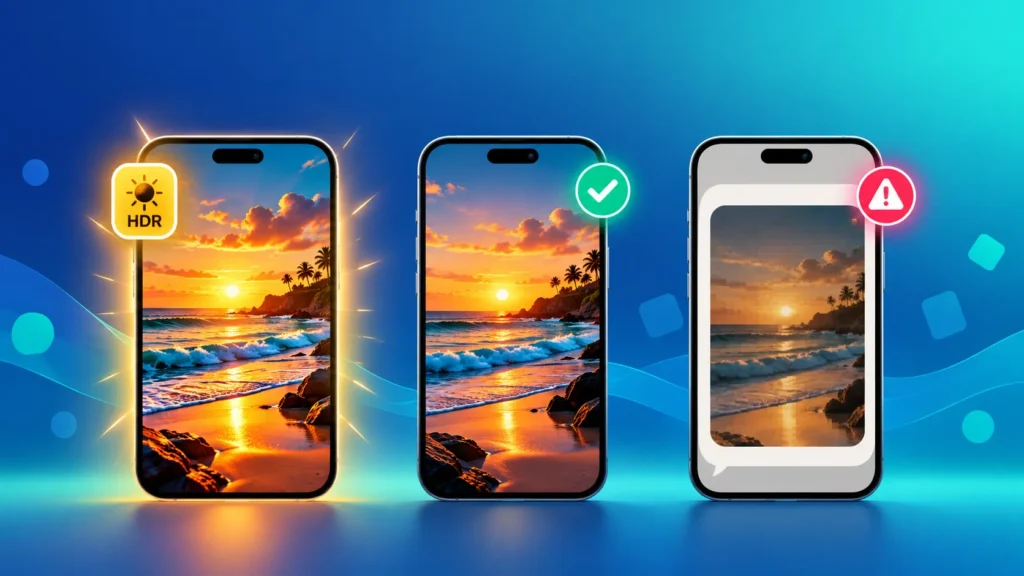
Ever posted a photo that looked blinding on Instagram, maybe even with an HDR label on it, then sent the same photo on WhatsApp and watched it turn flat and dull? You’re not imagining it. Your phone is shooting HDR photos — and every app, screen and file format handles them differently. Here’s what HDR on Instagram actually means, why photos look so different everywhere, and how to make them look right wherever you share them.
What Does HDR Mean on Instagram?
If you see an HDR label on a photo in Instagram, it means the photo carries extra brightness information, so on a compatible screen the bright parts can look brighter than in a normal photo. It’s not a filter you added. It usually comes from the photo file itself and from how your phone and the app handle it. Where the label appears can vary by phone and app version.
What Are HDR Photos?
HDR stands for High Dynamic Range. An HDR photo stores extra brightness information, so on a modern phone or laptop screen, bright parts like the sun, lamps or reflections can actually glow — much closer to what your eyes saw.
Most recent iPhones, Pixels and Samsung Galaxy phones now take HDR photos automatically. Many people don’t even know their camera is doing it.
How HDR Photos Work: The “Gain Map” Trick
Modern HDR photos are clever. Inside the file, there’s a normal photo plus a hidden extra layer called a gain map, which tells HDR screens how much brighter to make each area.
- On an HDR screen → the gain map is used, and highlights glow
- On an older screen or app → only the normal photo is shown
That’s why one photo can look completely different on two devices. You’ll find HDR inside several formats: HEIC on iPhones, Ultra HDR JPG on Android, and newer web formats like AVIF and JPEG XL.
Why Your Photos Look Different on Every App
| Where You Share | What Usually Happens |
|---|---|
| Instagram / Threads | Supports HDR — highlights can look extra bright, sometimes harsh next to normal posts |
| Compresses photos to standard range — HDR glow disappears, photos can look flatter | |
| Web browsers | Most modern browsers can show HDR images on HDR screens |
| Email, forms, older apps | Usually show the standard version only |
| Printing | Paper can’t glow — prints always use the standard version |
Problem 1: “My Photos Look Too Bright on Instagram”
If your HDR photo appears in a feed full of normal photos, the bright areas can look blown out or almost painful to look at.
Quick fixes:
- Tone it down before posting — on Android, Google Photos lets you adjust the Ultra HDR strength in its editing tools
- Post a standard version — converting your photo to a regular JPG gives it a consistent look on every screen. Use our Image Converter, then check the result before posting
- On iPhone — if HDR photos look too bright while browsing your own gallery, check the HDR viewing option in Settings → Photos
Why HDR Photos Can Look Dull or Blurry on Instagram
When a photo has HDR information but the screen or app can’t show it, the photo gets squeezed into the standard brightness range. That can make it look flatter, darker or slightly different from what you saw in your gallery. Instagram also compresses uploads, which can soften fine detail.
If a photo looks off after posting:
- Compare it with the original in your gallery, on the same phone, at similar screen brightness
- Convert the photo to a standard JPG with the Image Converter and post that version instead
- Lift the shadows or brightness slightly in your photo editor before exporting, if the standard version looks too dark
Problem 2: “My Photos Look Dull on WhatsApp”
WhatsApp compresses photos and drops the HDR information, so photos that glowed on your phone can arrive looking flat.
Quick fixes:
- Tap HD before sending to keep more detail
- Send the photo as a Document to keep the original file — read our guide to uncompressed photos for the full method
Problem 3: “My Photo Looks Different After Converting”
When you convert an HDR photo — for example, iPhone HEIC to JPG — the result is usually a standard photo. The colours stay, but the extra HDR glow is gone.
This isn’t a bug, and it’s often exactly what you want: a standard JPG looks the same on every phone, computer, form and printer. If you want the HDR version for Instagram, share the original photo from your phone; for everything else, a converted JPG is the safer choice.
Need to convert lots of photos at once? See how to convert many image formats to JPG in seconds.
HDR and the Next Generation of Image Formats
HDR is a big reason new image formats keep appearing. Old JPG was never designed for it. Newer formats are:
- AVIF — supports HDR and is used by many websites (got a .avif file that won’t open? Use our AVIF to JPG Converter)
- JPEG XL — strong HDR support, recently added to Chrome
- HEIC — Apple’s format, used for HDR photos on iPhone
As more screens become HDR-capable, expect to see more of these formats — and more “why does my photo look weird?” moments.
Should You Turn HDR Off?
Usually not. HDR photos genuinely look better on modern screens, and your phone always keeps a standard version inside the file for older devices. A simple approach:
- Keep HDR on when you take photos
- Share originals on Instagram if you like the glow
- Convert to standard JPG for WhatsApp, forms, printing and older devices
Can you turn HDR off inside Instagram itself? Its options can change between app versions, so check what your app offers. On some phones you can also turn HDR off in the camera settings. The most reliable approach is still the one above: post a standard JPG when you want a predictable look.
Frequently Asked Questions
What does HDR mean on Instagram?
HDR means High Dynamic Range. An HDR label suggests the photo carries extra brightness information, so bright areas can look brighter on compatible screens.
What is an HDR photo?
An HDR (High Dynamic Range) photo stores extra brightness information so bright areas can glow on modern screens, closer to what your eyes saw.
Why do my photos look too bright on Instagram?
Instagram supports HDR, so HDR photos can appear much brighter than regular posts. Lower the HDR effect before posting, or post a standard JPG version.
Why do HDR photos look dull or blurry on Instagram?
If the app or screen can’t show the extra HDR brightness, the photo is squeezed into the standard range and can look flatter. Instagram also compresses uploads, which can soften detail. Posting a standard JPG often gives a more predictable result.
Can I turn off HDR on Instagram?
Options vary by phone and app version, so check your Instagram and camera settings. A reliable alternative is to convert the photo to a standard JPG before posting.
Why do my photos look dull on WhatsApp?
WhatsApp compresses photos and removes the HDR information. Send them in HD or as a Document to keep more quality.
Does converting HEIC to JPG remove HDR?
Usually, yes. The converted JPG is a standard photo that looks consistent everywhere, but without the extra HDR glow.
Which image formats support HDR?
HEIC, Ultra HDR JPG, AVIF and JPEG XL can all store HDR photos. Classic JPG and PNG are standard range only.
Can I print HDR photos?
Prints always use the standard version, because paper can’t glow like a screen. Converting to a standard JPG before printing gives you the most predictable result.