
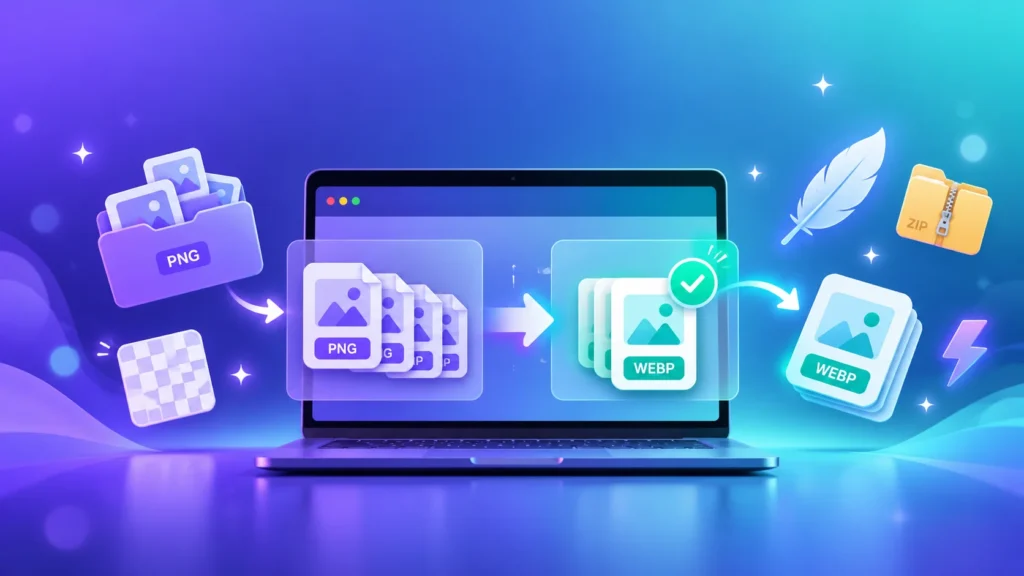
Got a folder full of PNG logos, banners, product shots or screenshots that are too heavy for your website? Converting PNG to WebP can make them smaller while keeping transparent backgrounds, but doing it one image at a time takes forever. Here’s how to convert a whole batch in your browser, what quality to choose, and when it’s smarter to keep the PNG.
Why Convert PNG to WebP?
PNG is lossless, which is great for quality but often means large files. WebP can store images with transparency just like PNG, and it often produces smaller files, which helps pages load faster. How much smaller depends on the image: photo-like PNGs usually shrink the most, while simple flat graphics shrink less.
If you only have one or two images, our PNG to WebP converter does the job in seconds. This guide is for when you have a lot of them.
How to Convert PNG to WebP in Bulk (Step by Step)
- Open the PNG to WebP converter
- Drag all your PNG files onto the page at once, or click to browse and select them
- Make sure the output format is set to WebP
- Set the quality (see the table below)
- Click Convert all
- Download the files one by one, or grab them all as a ZIP
Everything runs in your browser, so your images are not uploaded to a server.
Which Quality Setting Should You Use?
There’s no single perfect number, so treat these as starting points and compare before you replace your originals.
| Type of image | Starting quality | Why |
|---|---|---|
| Logos, icons, text-heavy graphics | 90 or higher | Sharp edges and small text show compression first |
| Banners and product photos saved as PNG | 80 to 90 | Usually a good balance of size and detail |
| Large background or hero images | 70 to 85 | Bigger images benefit most from a smaller file size |
How to check the result
- Compare the new file size with the original before downloading
- Zoom in on text and edges to spot blur or fuzzy patches
- If something looks off, raise the quality a little and convert again
Will Transparent Backgrounds Stay Transparent?
Yes. WebP supports transparency, so a PNG with a transparent background can stay transparent after conversion. To double-check, place the converted image on a coloured background, or open it in a new browser tab, and look for any white or black box around your logo.
Convert PNG and JPG to WebP Together
Mixed folders are normal: a few PNG logos, a bunch of JPG photos. You don’t need to sort them first. The Image Converter accepts several formats at once, and if you only have photos, the JPG to WebP converter works the same way.
Upload Checklist for WordPress, Shopify and Other Platforms
- Check that your platform accepts WebP. Recent WordPress versions do, and many other platforms do too, but older themes, plugins or email tools may not. If an upload is rejected, check the supported file types
- Keep your original PNGs in a separate folder as a backup
- Resize oversized images first with the Image Resizer. A 4000px image in a 400px box wastes data even as WebP
- Squeeze out more with the Image Compressor if a file is still heavy
- Use clear file names like logo-dark.webp and add alt text after uploading
Images are often the biggest reason a page feels slow, and we explain why in why your website feels slow.
When Should You Keep the PNG?
WebP isn’t always the better choice. Keep the PNG when:
- You’re still editing the image, because PNG is a safe master copy
- The place you’re uploading to doesn’t accept WebP, such as some forms, older apps and email tools. If you ever end up with a WebP you can’t open, see why images keep saving as WebP
- The image is tiny, since the saving may not be worth the extra step
- It’s a screenshot you want to keep pixel-perfect. For a deeper look, read our test of the best image format for screenshots
Need the PNG Back?
If you converted too early or need a PNG for editing, use the WebP to PNG converter. Not sure whether JPG, WebP or AVIF is right for a given image? Our PNG converter guide helps you choose.
Frequently Asked Questions
How do I convert multiple PNG files to WebP at once?
Open a converter that supports batch conversion, drag all your PNG files onto the page, choose WebP as the output format, and convert them together. You can then download the results as a ZIP.
Does converting PNG to WebP keep transparency?
Yes. WebP supports transparency, so transparent PNG backgrounds can stay transparent. Place the result on a coloured background to double-check.
Will PNG to WebP lose quality?
It depends on your settings. At high quality settings the difference is usually hard to see, but you should compare the result before replacing your originals.
How much smaller will my files be?
It varies by image. Photo-like PNGs often shrink a lot, while simple flat graphics shrink less. Check the new file size before you download.
Can I convert PNG and JPG to WebP together?
Yes. A multi-format converter lets you drop PNG and JPG files in together and convert them all to WebP in one go.
Can I upload WebP images to WordPress or Shopify?
Recent versions of WordPress accept WebP uploads, and many other platforms do too, but support depends on your platform, theme and plugins. If an upload is rejected, check the supported file types or keep a PNG or JPG copy as a fallback.
Are my images uploaded anywhere?
No. Our converter runs in your browser, so your files stay on your device.
Is there a file size limit?
The converter lists a 50 MB limit per file, and very large files can be slow to convert.